
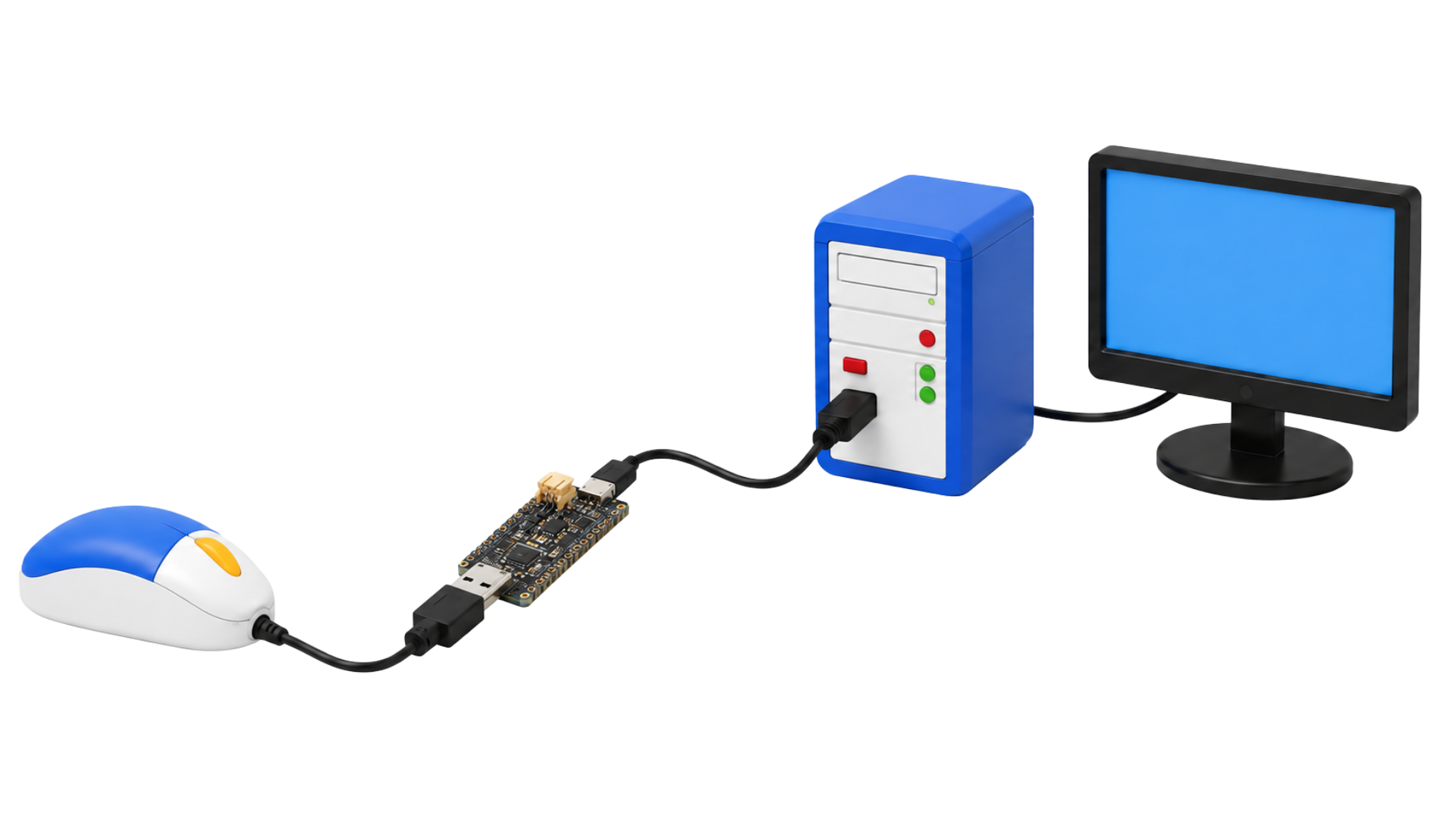
What you’ll need
- Adafruit Feather RP2040 with USB Type A Host
- Your mouse and a USB data cable to the PC
- Your 1PC license key from your purchase email
1. Prepare your board
Already completed Setup and your mouse works through this board? Go straight to step 2.
- Open Downloads, enter your 1PC license and download Setup.
- Right-click the downloaded folder and choose Extract All. Open Setup from the extracted folder, with your game closed.
- Select Feather RP2040 USB Host. Connect only the board you’re preparing and follow the instructions shown.
- If Setup asks you to hold BOOT, keep it held while connecting the board’s PC port. Release it when the board appears. Do not format the drive.
- Leave the board connected until Setup confirms it has finished.
2. Connect your mouse
- Connect your mouse to the USB-A host port on the Feather.
- Connect the Feather’s PC port to the same computer.
After Setup finishes, check that moving your physical mouse moves the pointer through the board. A device name or a light alone doesn’t confirm that it works.
3. Open aimos
- Return to Downloads and choose 1PC Color or 1PC AI. Your 1PC license includes both; use one at a time.
- Open your download and sign in with your 1PC license.
- Press F10 to open settings, unless you changed that shortcut. Check your activation button and save your changes.
Next time you play, keep the mouse connected through your board and open aimos. You don’t need to run Setup again.